FujiLink: Native FujiNet Access for SpartaDOS X 4.50

FujiLink is a new SpartaDOS X driver that integrates FujiNet network resources directly into the operating system for Atari 8-bit computers. Instead of using a separate application, users can access FujiNet through standard SpartaDOS X commands and familiar device names.

The first public version, FujiLink 0.1, is already available for testing. It provides the essential functionality needed to mount and use FujiNet resources from SpartaDOS X 4.50.

FujiNet as a native SpartaDOS X device

Once installed, FujiLink adds a new NET: device handler to SpartaDOS X. It supports eight independently mounted resources, available as:

NET1:
NET2:
...
NET8:

Each device can point to a different FujiNet-supported resource. For example, a TNFS server can be mounted simply by changing the current directory:

CD NET3:TNFS://192.168.1.20/

The FujiNet SD card can be accessed in exactly the same way:

CD NET4:SD:///

After that, the mounted resource behaves like a regular SpartaDOS X device and can be used with standard DOS commands and applications.

One important benefit is that SD-card access does not require PCLink to be enabled in FujiNet or the separate PCLINK.SYS driver to be installed. FujiLink communicates with the FujiNet SD filesystem directly.

Managing mounted resources

Unmounting a single resource is equally simple:

CD NET3:-

This clears the FujiNet prefix assigned to NET3:.

All currently configured network mounts can be removed with:

CD NET:--

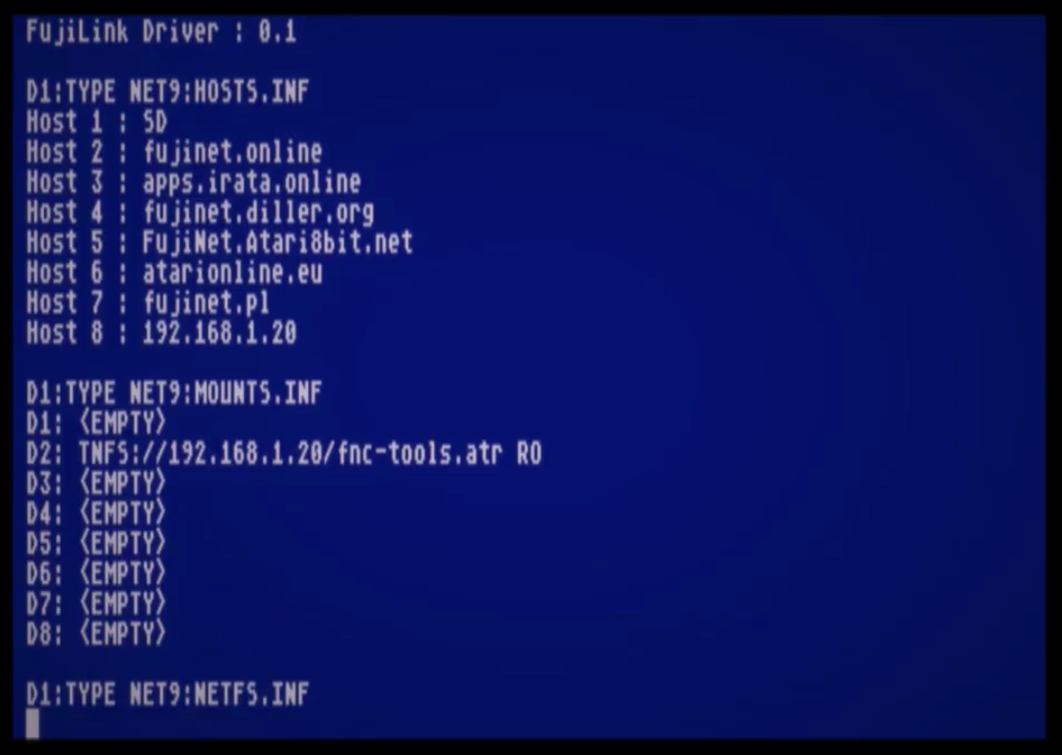
FujiLink also provides a small virtual filesystem through NET9:—also available as NETI:—containing status and information files.

For example, the list of currently mounted resources can be displayed with:

TYPE NET9:NETFS.INF

The objective is to expose as much FujiNet functionality as possible through ordinary SpartaDOS X conventions. After installing the driver, users should not need a separate configuration program for everyday filesystem operations.

Installation

Installing FujiLink requires only a few steps:

  1. Connect FujiNet to the Atari and boot SpartaDOS X 4.50
  2. Copy FUJILINK.SYS to a disk, SDX ROM image or cartridge
  3. Add the following line to CONFIG.SYS:
DEVICE FUJILINK
  1. Reboot SpartaDOS X.

The NET: devices will then become available automatically.

Current status

FujiLink 0.1 is the first working public prototype. The fundamental filesystem operations are already functional, but the driver still needs broader testing with existing SpartaDOS X software.

Some compatibility issues have already been identified with tools such as MENU and Sparta Commander. These appear to be solvable, but testing with a wider range of applications will help define the final behaviour of the driver.

Aliases, redirection and other advanced SpartaDOS X features also require additional testing.

Planned development

One of the main priorities is reducing FujiLink’s conventional-memory footprint. The current prototype allocates more memory than the final driver should require. A future release is planned to introduce more compact code and lazy memory allocation, reserving resources only when they are actually needed.

A dedicated version for computers equipped with a 65816 processor is also under development. FujiLink816 will be able to move most of the driver into 65816 linear memory, leaving considerably more of the Atari’s main address space available to SpartaDOS X applications.

Planned improvements include:

  • a significantly smaller memory footprint;
  • lazy allocation of internal buffers;
  • a dedicated and more memory-efficient 65816 version;
  • improved compatibility with SpartaDOS X utilities;
  • further integration with aliases and redirection;
  • public procedures that other programs can call;
  • access to system information such as FujiNet’s IP address;
  • optional startup scripts for automatically mounting frequently used resources.

A simple NETMOUNT.BAT file could, for example, contain a sequence of CD commands and restore all preferred network mounts during system startup.

Developed natively for the Atari

FujiLink is also an important real-world test of the new ORCA/DevKit toolchain for Atari computers. The driver was developed with:

  • ORCA/DevKit for Atari;
  • LenkaVM 65816, used for regression testing and running the development environment;
  • Opus 4.8 for AI-assisted code generation.

No conventional cross-compiler was used—the project was built with an Atari-native development toolchain.

FujiLink and its 65816 counterpart are planned to be released as open-source software.

Feedback wanted

FujiLink 0.1 has been available for several weeks, but more feedback from users is needed. In particular, practical use cases and suggestions will help determine which functions should receive priority in future releases.

If you use SpartaDOS X 4.50 and FujiNet, please test the driver with your normal software and share any compatibility problems, ideas or missing features.

The first release and further discussion are available in the FujiLink topic on AtariAge.

A demonstration of the first working version can also be watched on YouTube.
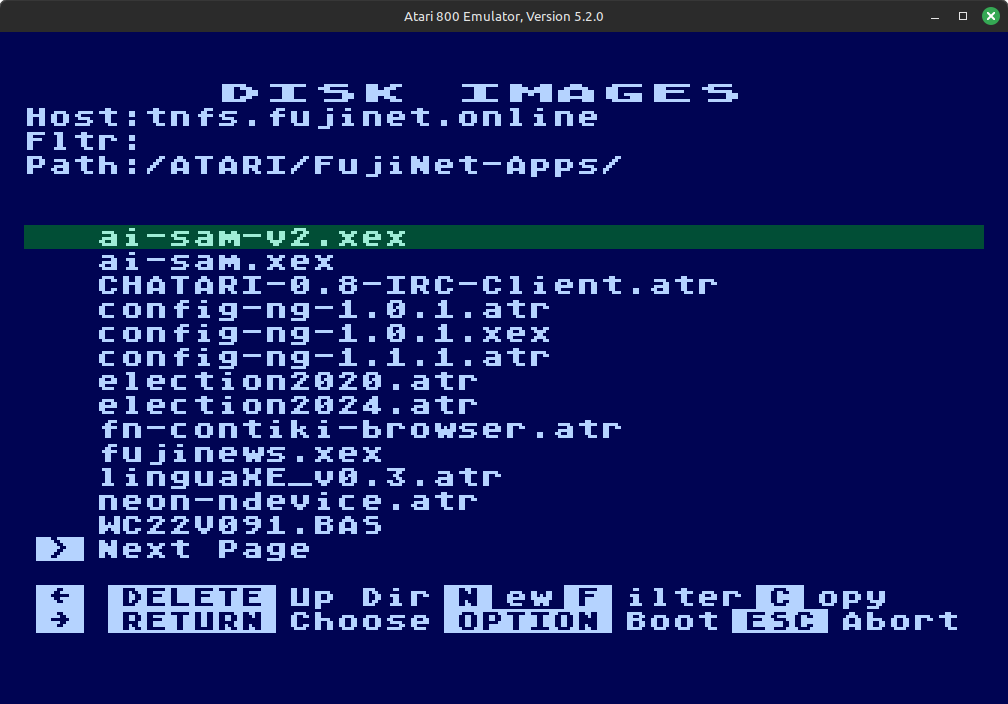
FujiNet-PC for Atari800 Emulator

We are happy to announce that support for FujiNet-PC Atari is available in the atari800 emulator source code. FujiNet-PC for the Altirra Atari 8-Bit emulator has been available for quite some time but it is natively a Windows only program. While Altirra can run on Linux and Mac under Wine, atari800 can be built to run natively on these platforms.

Until a new version of atari800 is released, you can build their latest source code to get NetSIO support which interfaces with FujiNet-PC. FujiNet-PC builds for Linux and Mac are available on the releases page or you can build it from source also.

NetSIO is a protocol created by FujiNet developer apc that acts as a middle-man or bridge between the emulator and FujiNet-PC. Since FujiNet began as a real hardware device for Atari, it conforms to the SIO specifications and makes use of all the hardware pins on the SIO port and these pins must also be emulated for FujiNet to work correctly. NetSIO forms data packets that are passed to FujiNet-PC via UDP.

NetSIO should be enabled at build time automatically for Linux and Mac builds of atari800 or you can optionally specify –enable-netsio when running the configure script before building it. Note, atari800 NetSIO will only work with Linux or MacOS and not for Windows. Once you have atari800 built, run FujiNet-PC first then just add -netsio to your atari800 command line options to enable it. It will automatically connect to FujiNet-PC and boot the usual CONFIG program.

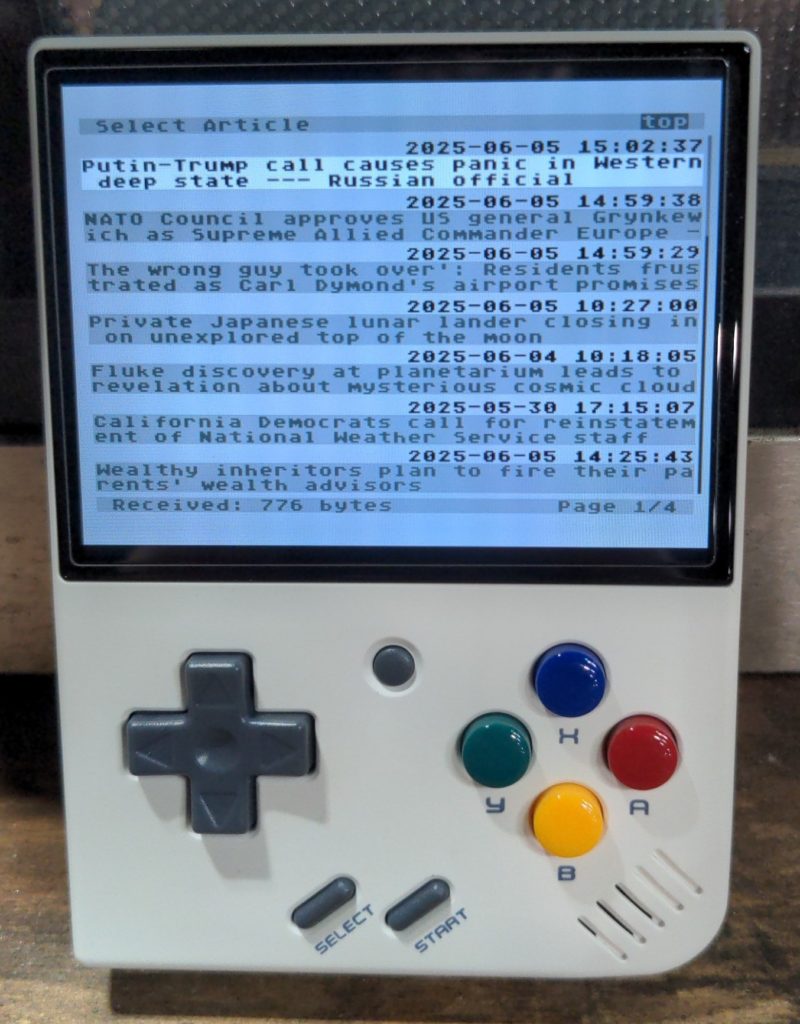
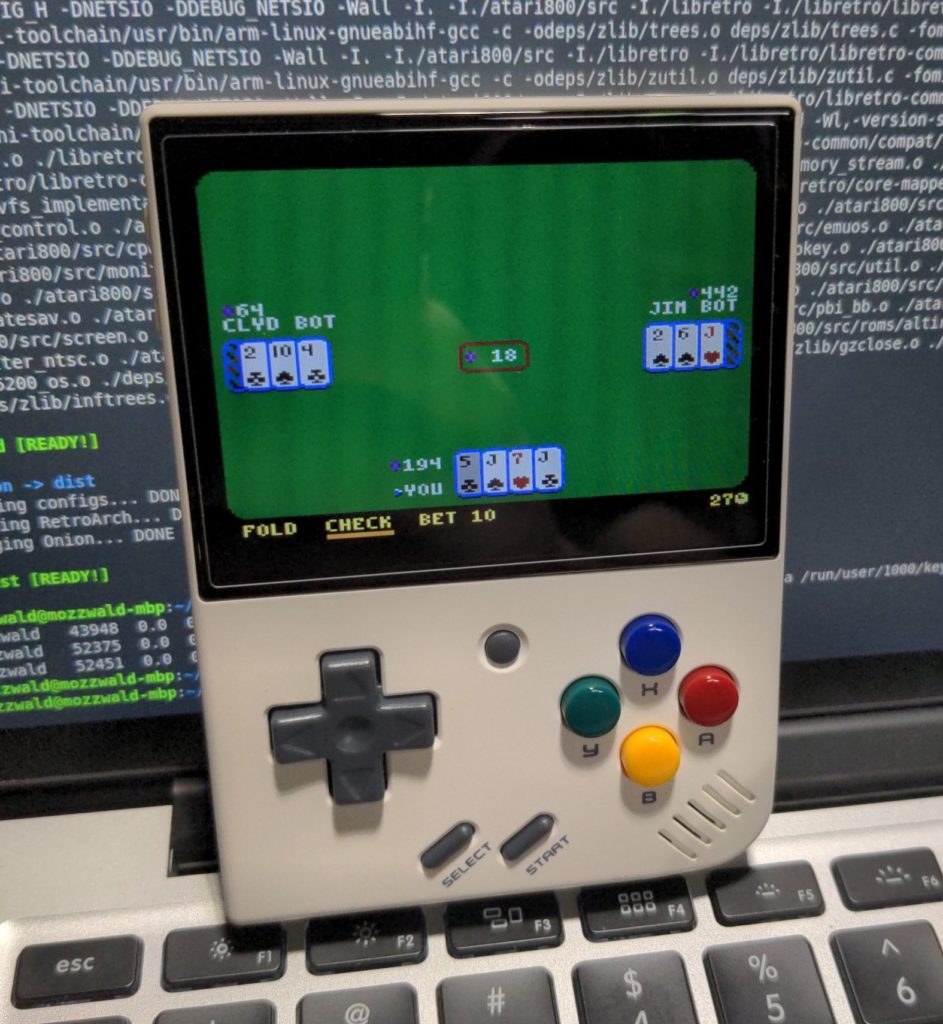
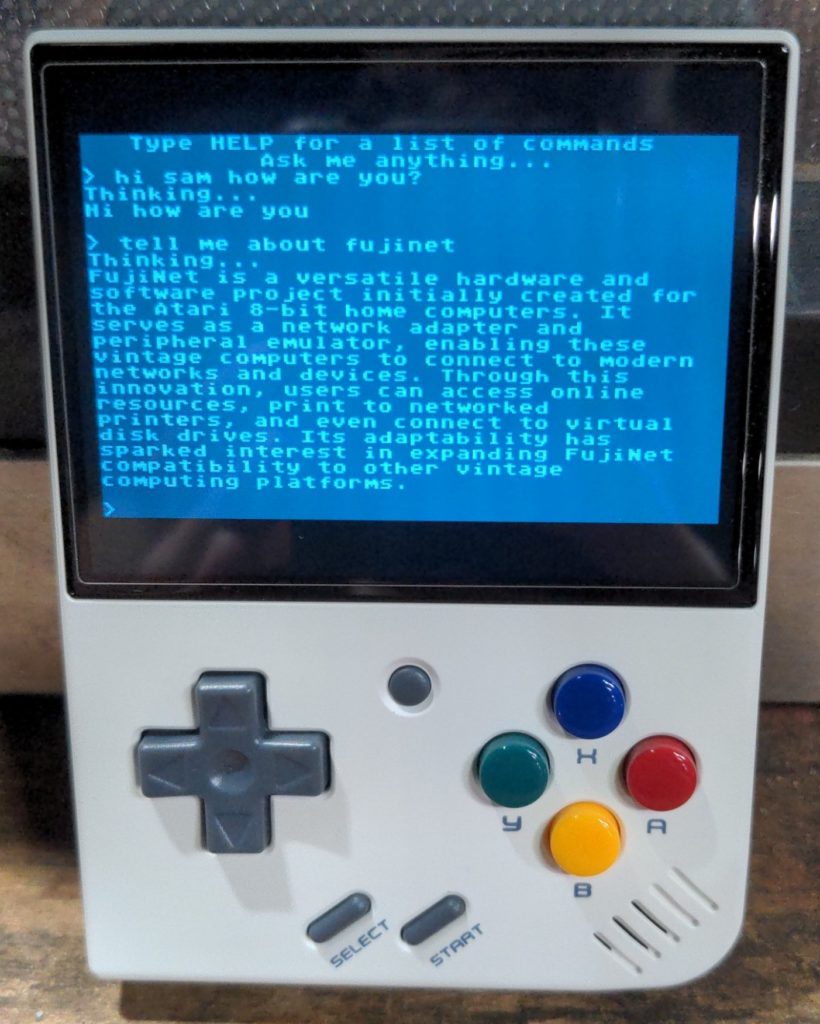
This opens the door for FujiNet-PC to run on any device running Linux including low power ARM devices. Some of us on the dev team have been working to get it running on the Miyoo Mini Plus handheld emulator which has wifi built-in. This means it is possible to have a FujiNet on the go!

For ATARI users: How to create your own SpartaDOS X Cartridge + FujiNet Tools (using SIDE3 as an example.)

The following YouTube video shows how to create your own SpartaDOS X cartridge with the FujiNet tools, from scratch, using the SpartaDOS X Imager (SDXImager) tool.

For this video, I installed a fresh copy of Ubuntu Linux Desktop using default options, and added the following packages via a terminal:

sudo apt install build-essential git wine

Once everything is built, you can transfer it to the nearest FujiNet via WebDAV, by selecting Network in Files, and Connecting to the address of your FujiNet:

DAV://192.168.1.21/dav/

Links Used in the video

Ubuntu Linux: https://ubuntu.com/download/desktop

CC65 Compiler: https://github.com/cc65/cc65

MAD Assembler: https://github.com/tebe6502/Mad-Assembler

FujiNet Tools: https://github.com/FujiNetWIFI/fujinet-tools

FujiNet N: Handler: https://github.com/FujiNetWIFI/fujinet-nhandler

Altirra Emulator: https://www.virtualdub.org/altirra.html

FujiNet NOS – A Network Only DOS.

In addition to simulating existing Atari disk drives, FujiNet opens up a new possibility for Atari 8-bit users: The ability to use files stored on networked file systems directly, without needing to use a disk image file as an intermediary. The NOS is a self booting ATR which can be mounted into device slot 1 and booted in place of a typical DOS. While at version 0.7.1, it is not yet complete, it is already quite usable, thanks to the consistent efforts of Michael Sternberg, who has done a fantastic job, so far.

Booting NOS

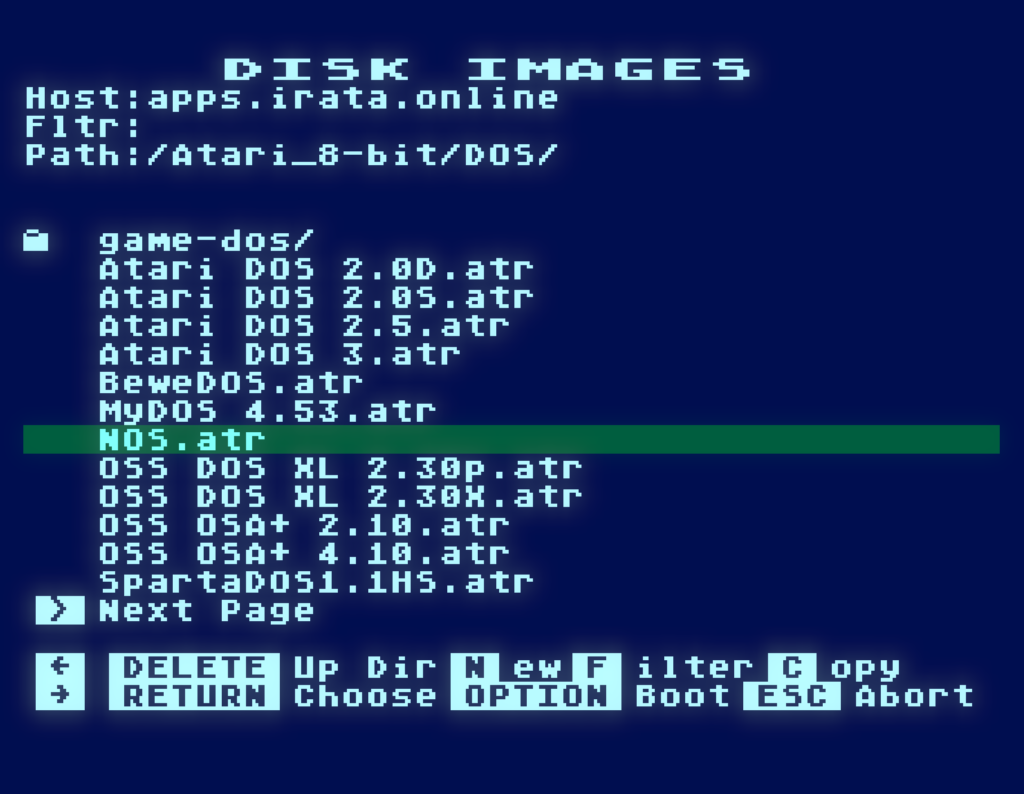
A copy of NOS 0.7.1 can be found in the /Atari-8-bit/DOS/ folder of the apps.irata.online TNFS server, and mounted into device slot 1:

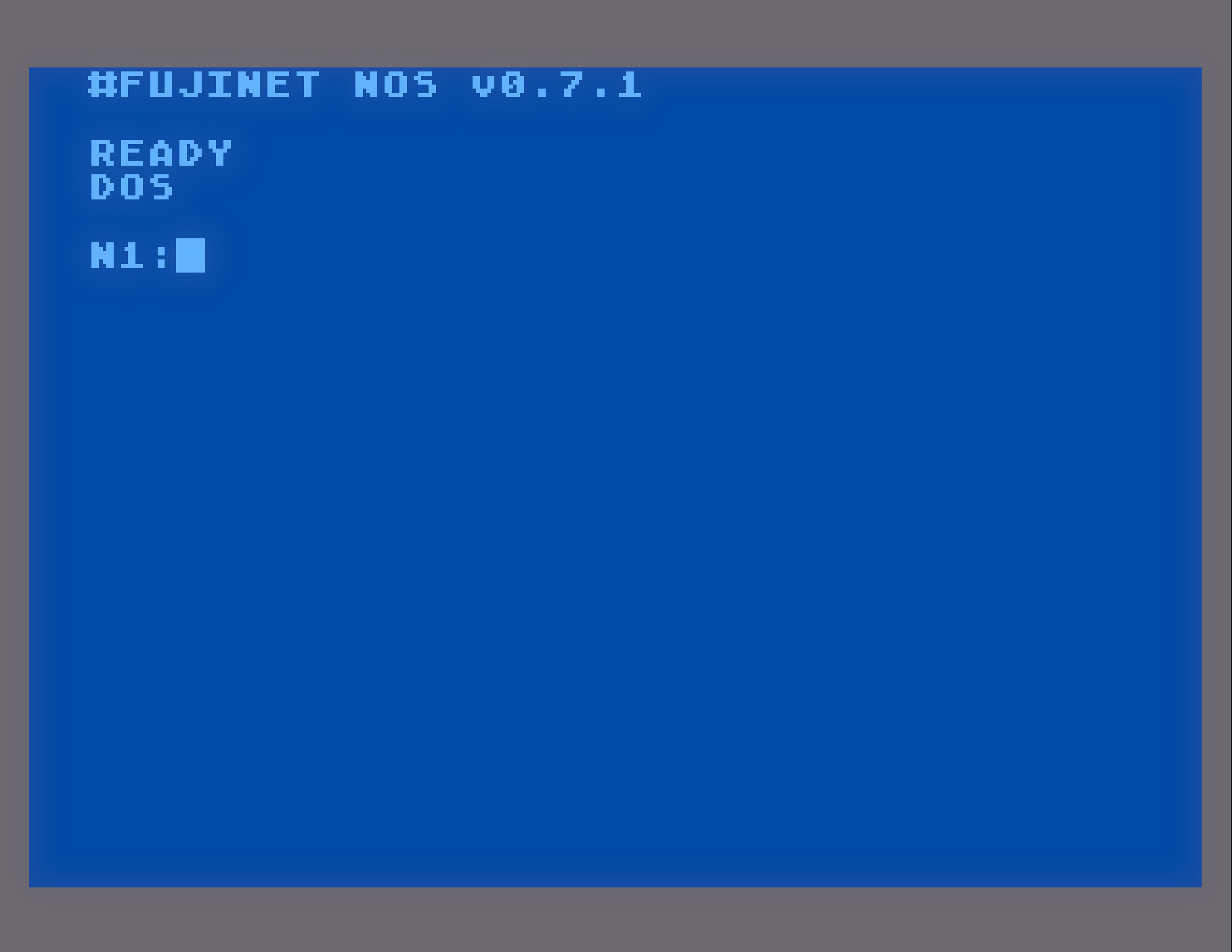
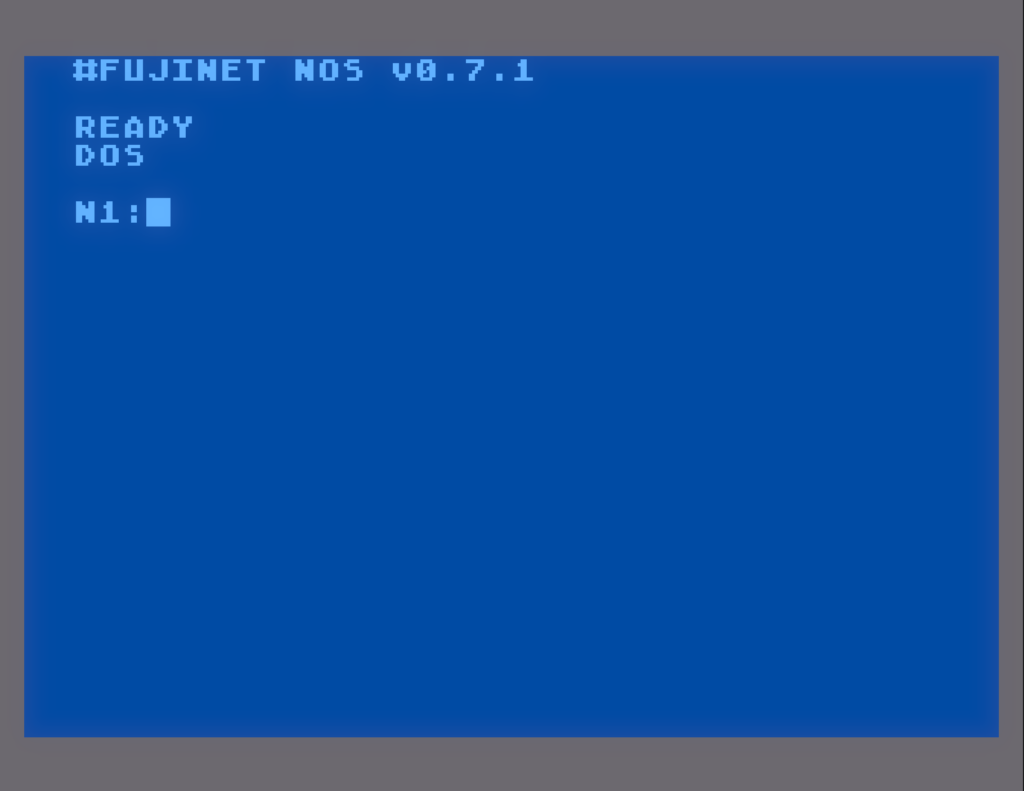
Once booted, you will be transferred to a cartridge, if present. The usual DOS statement in BASIC will transfer you to NOS, just like with DOS, if you do not have a cartridge installed, NOS will take control immediately, putting us on device N1 (of which there are 8 such N: devices that you can use independently):

Getting Help

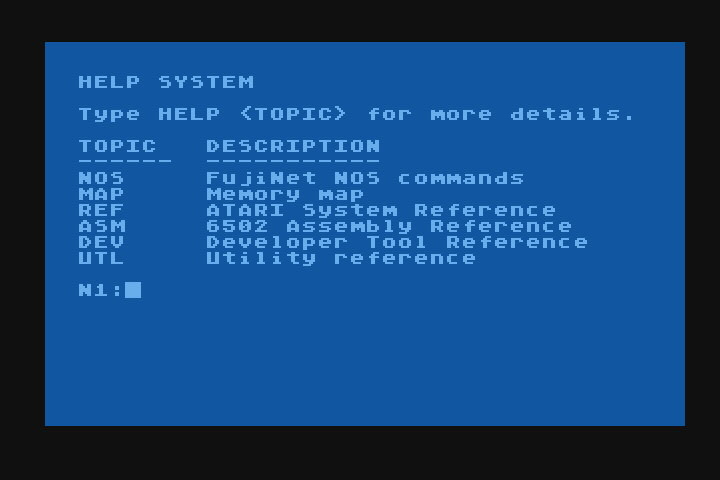
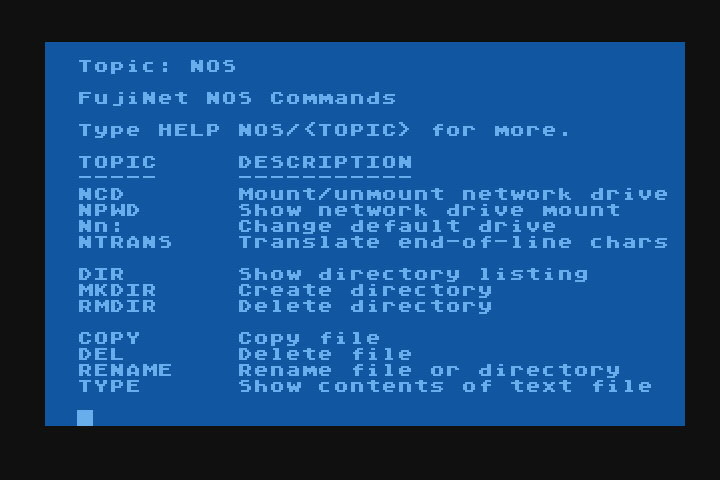
Yes. NOS is a command line DOS, in the same spirit as DOS XL, XDOS, and SpartaDOS. Thankfully, there is a comprehensive HELP system that reads its data from GitHub, just type HELP:

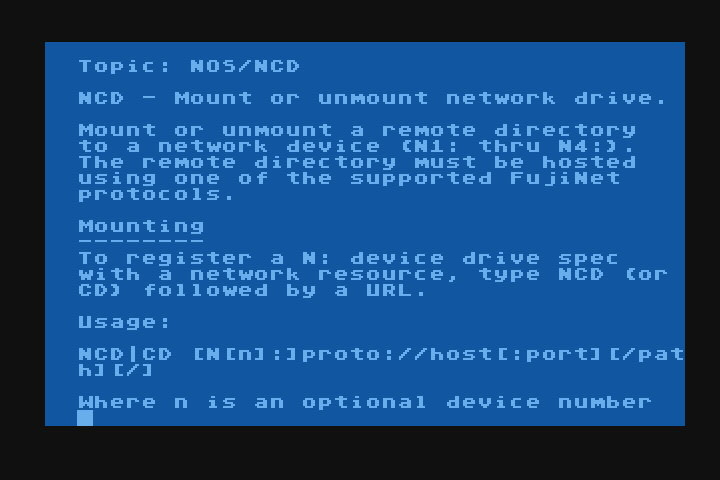
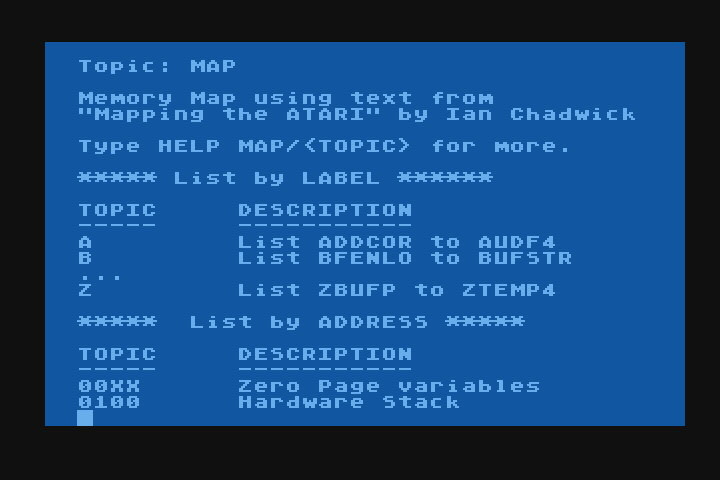
Each of these subsections give not only references for the built-in commands, but are also comprehensive references for software developers:

This will allow all of us as a community to add documentation for things we can add and do with NOS.

Where is the D: device?

There is no D: device. Since NOS does not load a file system of its own into memory, and relies on the FujiNet to do filesystem things, there is no D: device driver, and thus no way to access either physical drives or disk images mounted in FujiNet device slots.

Instead of providing a disk drive oriented file system, NOS provides the same N: device that is provided by NDEV in the FujiNet Network tools that are a part of every DOS disk in the Atari_8-bit/DOS/ folder on apps.irata.online.

What you can access is any individual file, over any protocol that the N: device can use. This means protocols such as:

  • TNFS
  • FTP
  • SMB (Windows File Sharing)
  • HTTP/S (Web, including WEBDAV)
  • SD (direct access to individual files on the SD card slot)

As a convenience, the N: device is also mapped to the D: device in HATABS, so that programs that only allow D: devicespecs can still work.

Let’s Load a Game!

In order to demonstrate how NOS works, and what makes it different from e.g. SpartaDOS, or MyDOS, or Atari DOS, let’s load a game directly from the Pigwa FTP server. To do this, we’ll iteratively change the directory using CD, and observing where we are with DIR. Once we get to our destination, we’ll load the game.

We’ll wind up here:

N1:CD "N:FTP://FTP.PIGWA.NET/stuff/collections/holmes cd/Holmes 2/Atari Archives/Antic Files/88/"

Of course, we can indeed type this all in at once, if we wanted, or we can change the path starting at the host name:

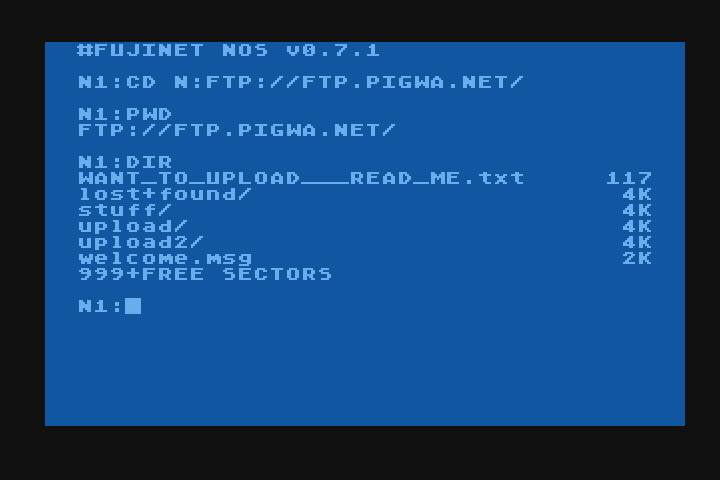
N1:CD N:FTP://FTP.PIGWA.NET/

We can see that the path has changed, by using the PWD (aka NPWD) command. This command can be issued to see the current path:

N1:PWD

And we can use the DIR command to get a directory at this location:

N1:DIR

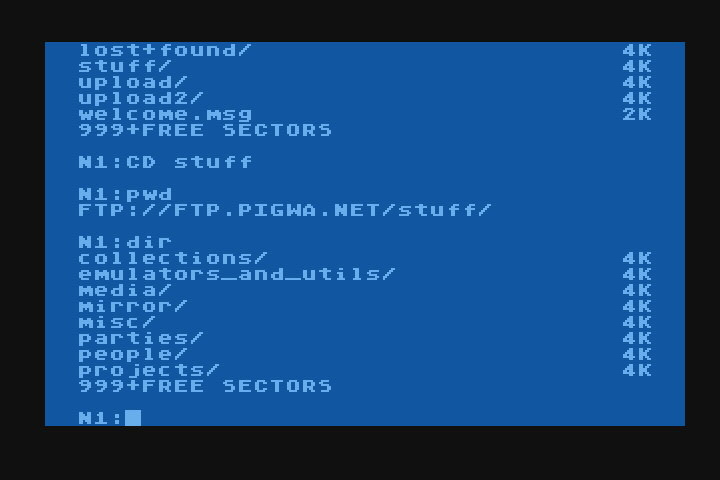
We can continue to traverse the path above, by passing the next part of the path to the CD command, and looking at the resulting directory, which we can double check with the PWD command:

N1:CD stuff

N1:PWD

N1:DIR

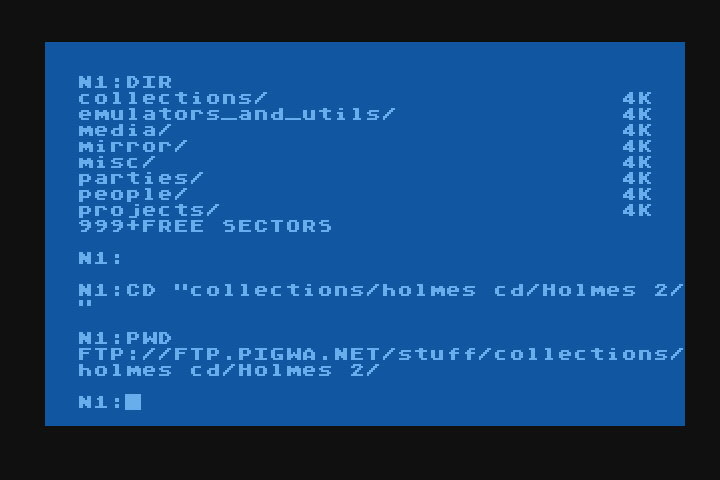
You don’t have to put each path component individually, you can concatenate path components together, seperated by a slash:

N1:CD “collections/holmes cd/Holmes 2/”

Note: Since the path contained a space, double-quotes are used to indicate that it’s all part of the path, and are only needed if the desired path contains any spaces.

You can see the result with the PWD command:

Also note: Many modern file systems are case-sensitive, and you must type names exactly as the system expects them.

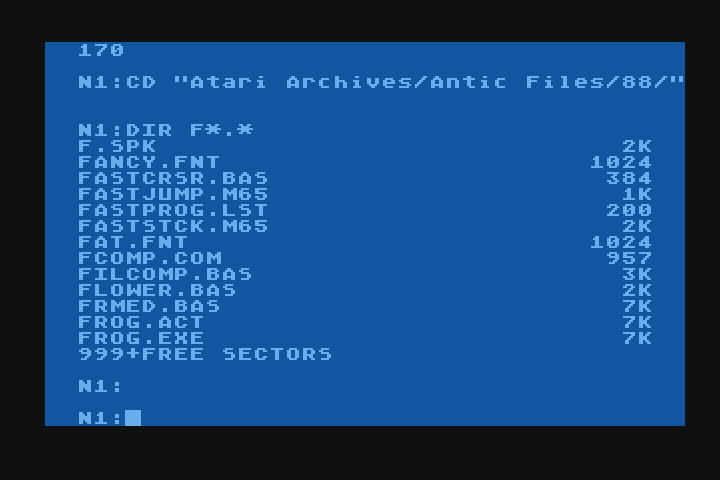
Once we get to the target path:

N:TNFS://FTP.PIGWA.NET/stuff/collections/holmes cd/Holmes 2/Atari Archives/Antic Files/88/

We can look for specific files beginning with F:

N:DIR F*.*

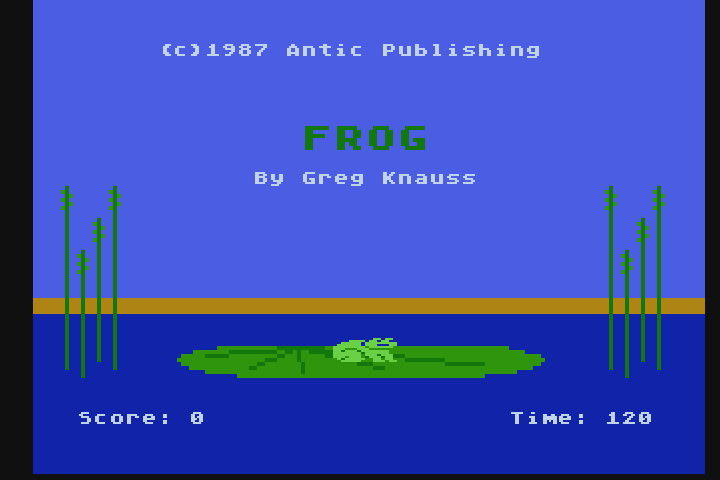
Let’s load FROG.EXE:

N1:LOAD FROG.EXE

There we go. A game that was loaded directly from an FTP server, onto the Atari, courtesy of the FujiNet doing all the heavy lifting behind the scenes.

N: Works Everywhere

As a bonus, re-boot your Atari computer with BASIC inserted or enabled. If your FujiNet was powered off during this process, go back to the same path:

N:TNFS://FTP.PIGWA.NET/stuff/collections/holmes cd/Holmes 2/Atari Archives/Antic Files/88/

And from BASIC type:

READY
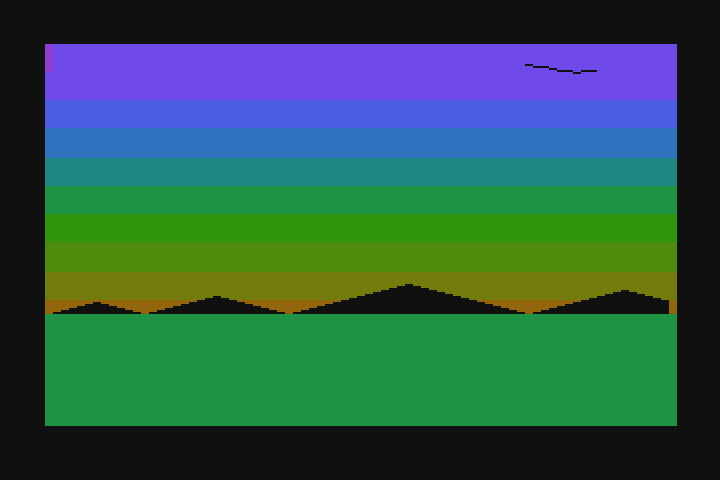
RUN"N:SUNSET.BAS"

Cool, huh? 🙂

N1: N2: N3: …

As has been alluded to before, there are 8 network devices defined in the FujiNet firmware, and NOS can use them all.

Note: N8: is used by NOS to handle features such as HELP.

You can change network devices in NOS by typing N1: to N8: at the prompt.

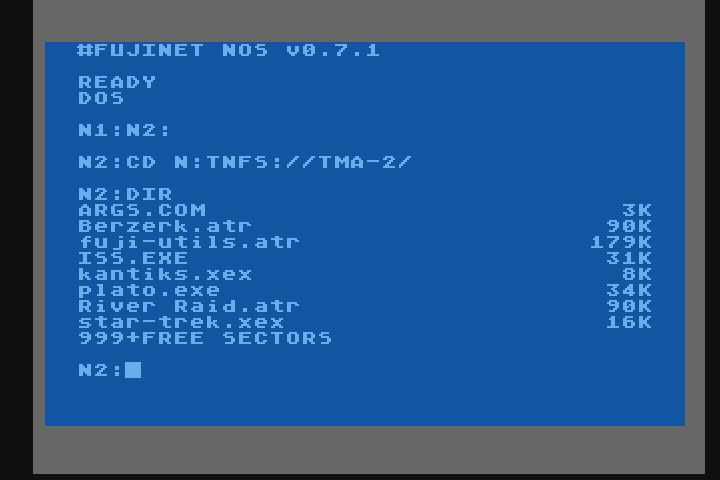
N1:N2:

The prompt will change to indicate the new default device:

N2:

This means each N: device can point to a different path:

In this case, N2: points to a local TNFS file server that I use for software development.

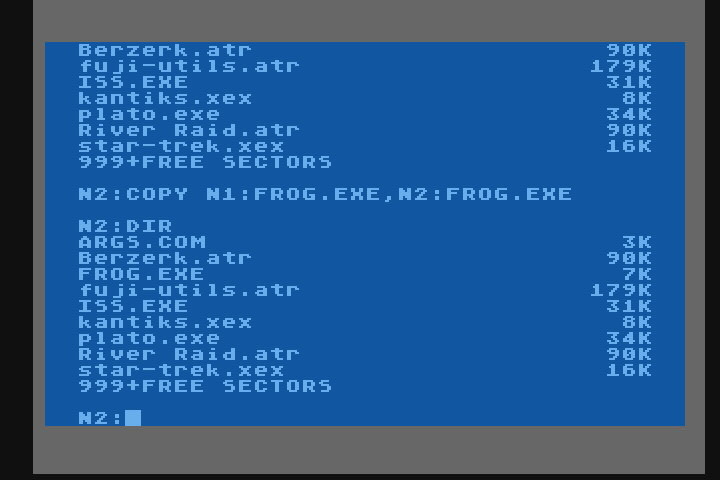
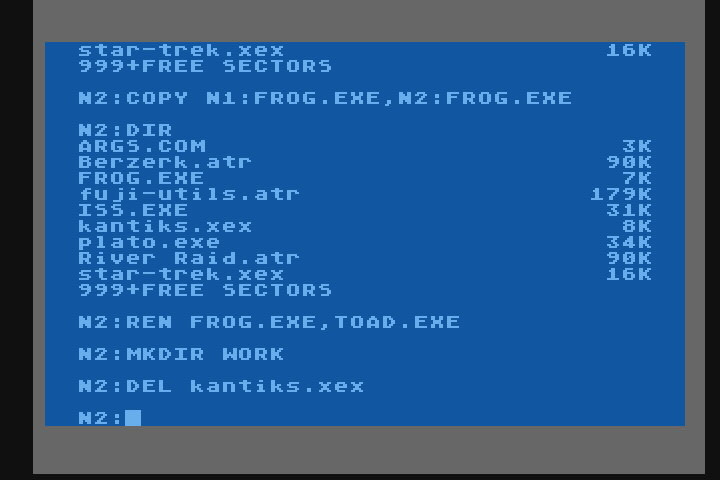
And I can easily copy files from one N: device to another, such as transferring the FROG.EXE we loaded earlier from FTP in N1:, onto my local TNFS file server, now in N2:

N2:COPY N1:FROG.EXE,N2:FROG.EXE

File management tasks such as renaming, deleting, as well as making and removing directories are also possible:

N2:REN FROG.EXE,TOAD.EXE

N2:MKDIR WORK

N2:DEL kantiks.xex

Automatic Boot Script

Any text file can be assigned as an automatic boot script using the AUTORUN command, giving the full path to the script:

N1:AUTORUN N:TNFS://TMA-2/AUTO.TXT

To accomplish this, NOS sets an AppKey on your FuijNet, which NOS will read when booted. This feature is useful for setting up a consistent environment with the N: devices pointed to your preferred network locations.

The Road to 1.0

While work on NOS is progressing, part of this post is a call to bring interested people in to help work on NOS and polish it up, and make it better. There are still many weird little bugs that can crop up during use, so we ask that users be patient, and if developers can help, feel free to grab a copy of the source code, and improve upon it.

The source code can be fetched from GitHub in the fujinet-nhandler repository:

https://github.com/FujiNetWIFI/fujinet-nhandler

And NOS is written in Assembler, using the mads assembler. The resulting build from the makefile generates the bootable ATR disk image automatically.

Thank you all for reading, I hope NOS will at the very least inspire new ways to think about how FujiNet can access networked files, unencumbered by legacy disk drive file systems, and hopefully maybe it can inspire some much needed improvements or totally new ideas in this space. -Thom

FujiNet YAIL with VBXE Support

YAIL Image Streamer for Atari 8 with VBXE Support

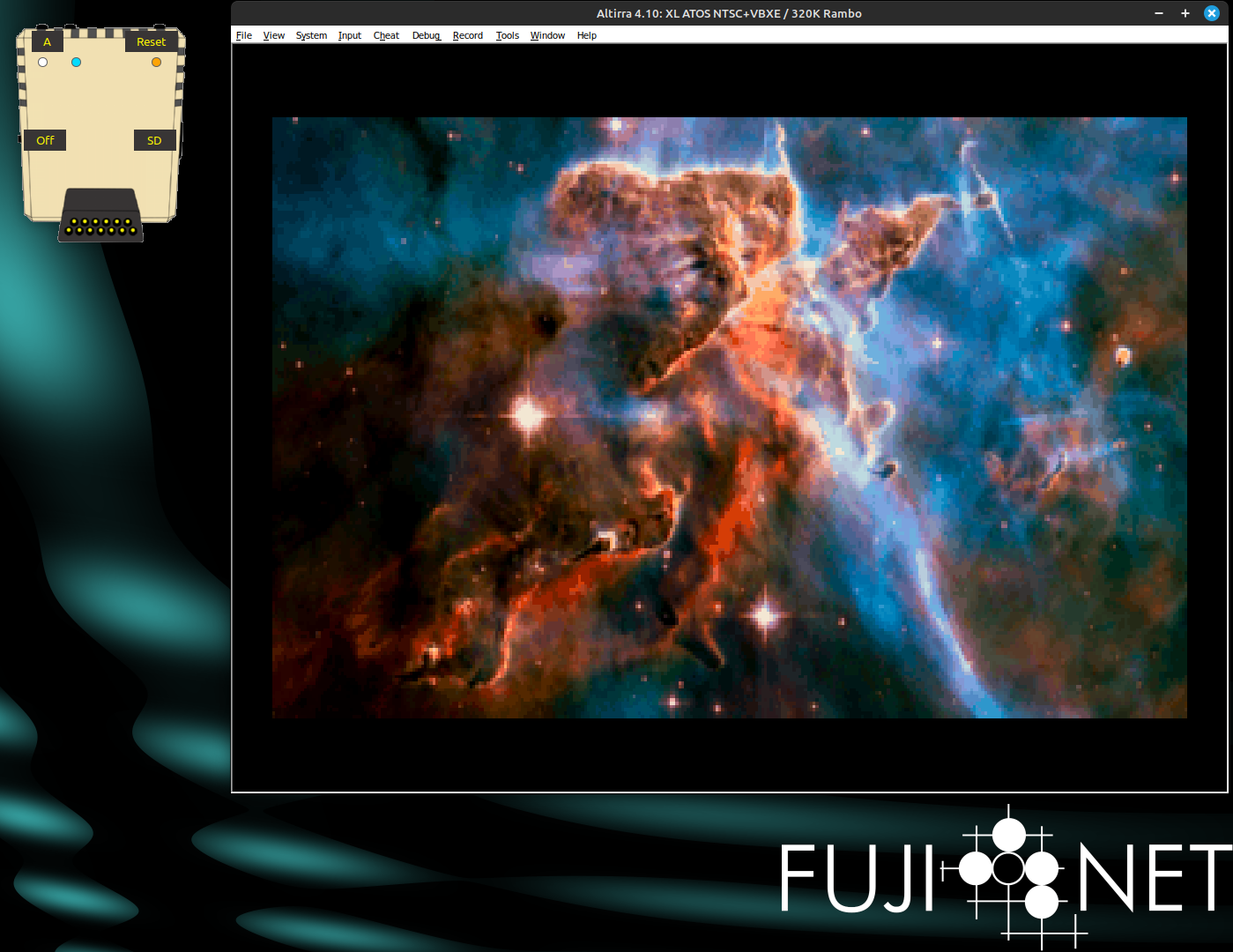
If you are not already familiar, YAIL is Yet Another Image Loader for Atari 8 Bit computers that works with FujiNet. Server software running on this website automatically converts and feeds images to the YAIL app on the Atari. All you need to do is set your graphics mode and enter a search term for the server to stream images from the internet to your Atari.

The YAIL app and YEET server were written by Brad Colbert and the source code is available on Github. YAIL can be mounted from the fujinet.online TNFS server located at ATARI/FujiNet-Apps/YAIL.XEX. For users with a VBXE upgraded Atari, you can set the graphics mode to 20 in YAIL (command: gfx 20) which enables the high resolution image streaming. Below is a demo video of the app in action.